Wednesday, November 20, 2013

Use MiniTool Mac Data Recovery to recover data from lost partition

Among all Mac users, most of them have encountered the situation of disk partition loss. Under this situation, Mac disk partition recovery is rather necessary for us, and the best solution is to choose a professional Mac data recovery software. Here I recommend MiniTool Mac Data Recovery to you. MiniTool Mac Data Recovery is developed especially for Mac OS. It not only runs perfectly in Mac, but also has great performance of recovering lost data from Mac disk under multiple situations. In addition, MiniTool Mac Data Recovery supports all kinds of common Mac storage devices and file systems. If you would like to know about this professional Mac data recovery software, please visit the official website of MiniTool Mac Data Recovery: http://www.mac-data-recover.com/.

Use MiniTool Mac Data Recovery to recover data from lost partition
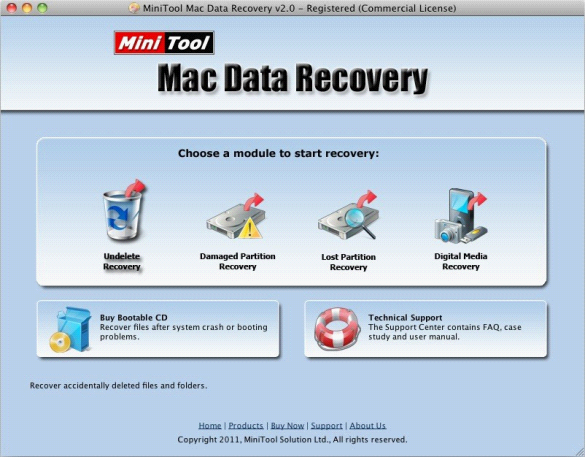
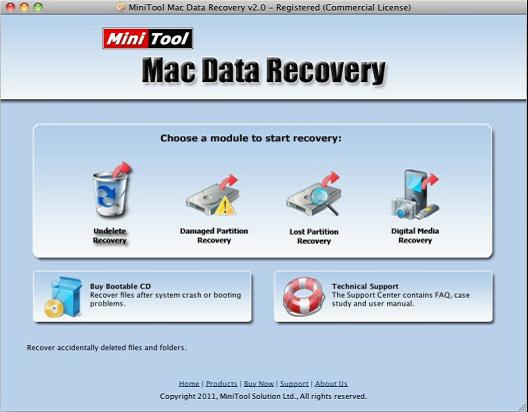
MiniTool Mac Data Recovery has comprehensive data recovery functions that are able to help us solve all kinds of common data recovery problems. For better understanding of the powerful functions of MiniTool Mac Data Recovery, I will show you a presentation of using MiniTool Mac Data Recovery to recover data from lost Mac disk partition. After downloading MiniTool Mac Data Recovery at the official website and installing it to Mac, we can launch it to start recovering. This screenshot is the main interface of MiniTool Mac Data Recovery:
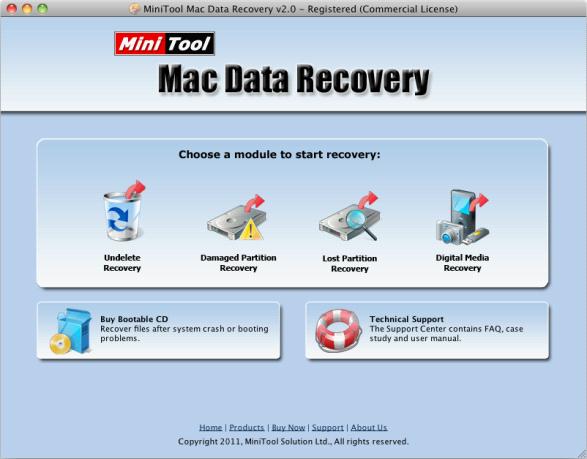


In main interface, MiniTool Mac Data Recovery provides users with four functional modules. To recover data from lost Mac disk partition, select "Lost Partition Recovery" functional module. The following interface will come up:
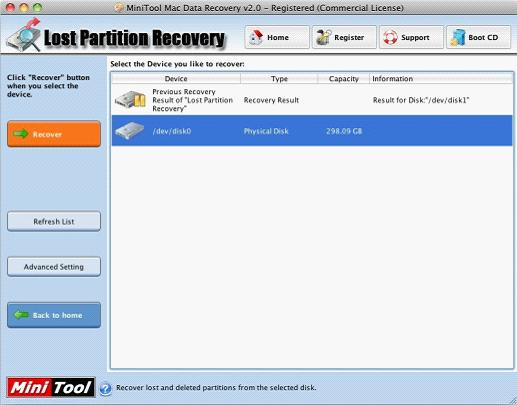


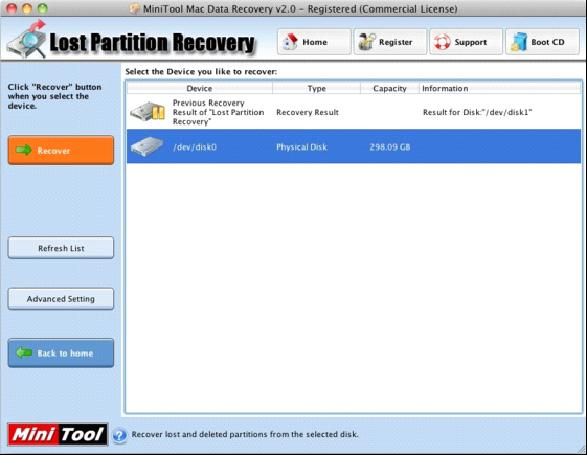
Entering this interface, we can see a disk list that lists all disks in Mac. Select the disk that has lost partition, and then click "Recover" button. After scanning the selected disk, the following interface will show up:
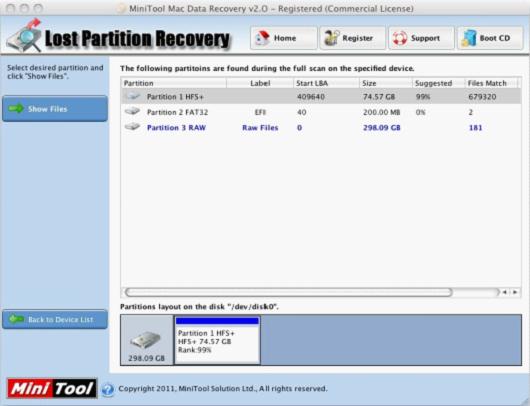


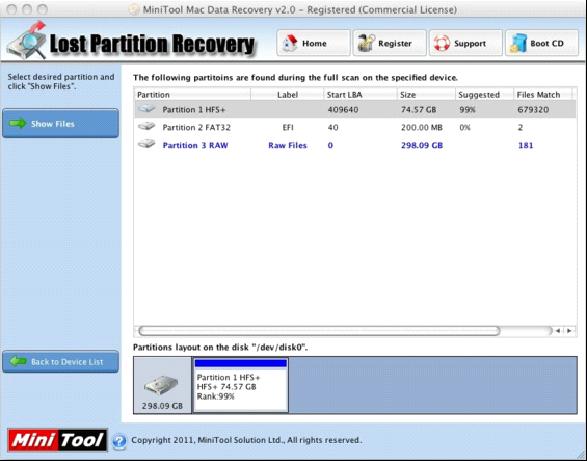
There are several partitions listed. Select the most suggested one and then click "Show Files" button.
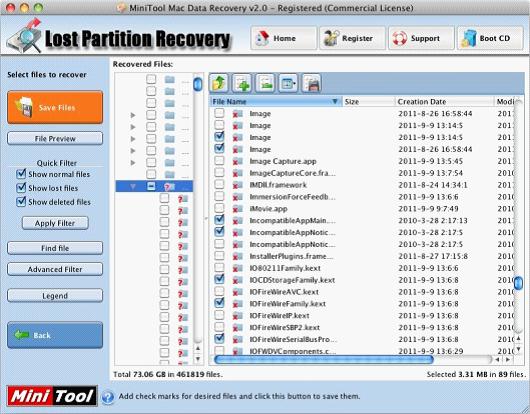


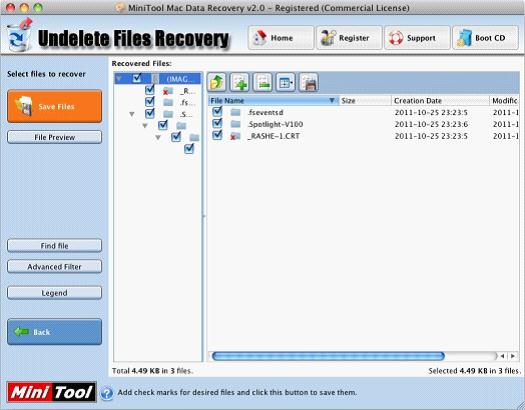
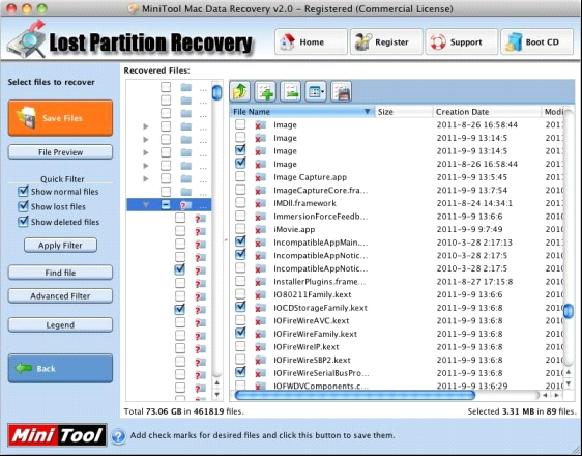
This is data recovery interface. It shows all data in the disk partition. Choose the data needing to be recovered, and then click "Save Files" button.
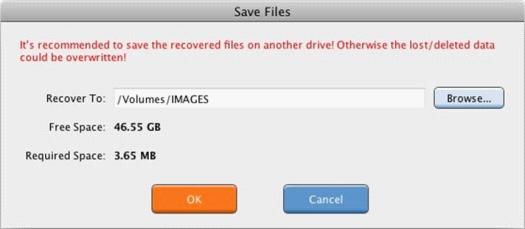


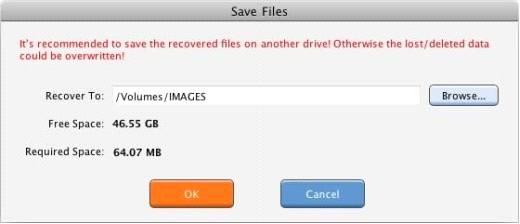
According to the prompt, click on "Browse", and set save path. Then click "OK" button, and wait for the automatic operation of MiniTool Mac Data Recovery. At last, Mac disk partition recovery is perfectly finished.

Through this presentation, we can find that operations are rather simple for MiniTool Mac Data Recovery. What's more, data recovered by MiniTool Mac Data Recovery is very complete. However, one point needing our attention is that before using MiniTool Mac Data Recovery to recover data, we should never create new partition or write new data to the lost partition. Otherwise the original data will be overwritten, causing second damage. At that time, none of data recovery programs is able to recover the lost data back any more.

Among all Mac users, most of them have encountered the situation of disk partition loss

Among all Mac users, most of them have encountered the situation of disk partition loss. Under this situation, Mac disk partition recovery is rather necessary for us, and the best solution is to choose a professional Mac data recovery software. Here I recommend MiniTool Mac Data Recovery to you. MiniTool Mac Data Recovery is developed especially for Mac OS. It not only runs perfectly in Mac, but also has great performance of recovering lost data from Mac disk under multiple situations. In addition, MiniTool Mac Data Recovery supports all kinds of common Mac storage devices and file systems. If you would like to know about this professional Mac data recovery software, please visit the official website of MiniTool Mac Data Recovery: http://www.mac-data-recover.com/.

Use MiniTool Mac Data Recovery to recover data from lost partition
MiniTool Mac Data Recovery has comprehensive data recovery functions that are able to help us solve all kinds of common data recovery problems. For better understanding of the powerful functions of MiniTool Mac Data Recovery, I will show you a presentation of using MiniTool Mac Data Recovery to recover data from lost Mac disk partition. After downloading MiniTool Mac Data Recovery at the official website and installing it to Mac, we can launch it to start recovering. This screenshot is the main interface of MiniTool Mac Data Recovery:


In main interface, MiniTool Mac Data Recovery provides users with four functional modules. To recover data from lost Mac disk partition, select "Lost Partition Recovery" functional module. The following interface will come up:


Entering this interface, we can see a disk list that lists all disks in Mac. Select the disk that has lost partition, and then click "Recover" button. After scanning the selected disk, the following interface will show up:


There are several partitions listed. Select the most suggested one and then click "Show Files" button.


This is data recovery interface. It shows all data in the disk partition. Choose the data needing to be recovered, and then click "Save Files" button.


According to the prompt, click on "Browse", and set save path. Then click "OK" button, and wait for the automatic operation of MiniTool Mac Data Recovery. At last, Mac disk partition recovery is perfectly finished.

Through this presentation, we can find that operations are rather simple for MiniTool Mac Data Recovery. What's more, data recovered by MiniTool Mac Data Recovery is very complete. However, one point needing our attention is that before using MiniTool Mac Data Recovery to recover data, we should never create new partition or write new data to the lost partition. Otherwise the original data will be overwritten, causing second damage. At that time, none of data recovery programs is able to recover the lost data back any more.

Sunday, November 17, 2013

Deleted data are one of the most common data loss situations and they contain different conditions

Deleted data are one of the most common data loss situations and they contain different conditions. If we do no setting, the deletion operation like "Right click file-delete" only puts data file into Recycle Bin instead of deleting data thoroughly. If we want to recover the deleted data, we can unfold Recycle Bin and right click file and then select "Recover" option. As to another deletion situation, since we do setting to deletion operation, the data will be deleted directly or emptied from Recycle Bin, and it is a little difficult to recover the deleted data. In order to recover deleted data, we need to use professional data recovery software. For Windows operating systems users, it is not difficult to select a piece of effective professional data recovery software because there is a lot of data recovery software providing helps for Windows users on the internet. But for Mac users, it was difficult to perform Mac deleted data recovery in the past. They had to spend a lot of money on resorting to professional data recovery companies. However, MiniTool Solution Ltd. has provided a latest solution to Mac deleted data recovery. That is the professional Mac deleted data recovery software - MiniTool Mac Data Recovery. It is professional Mac deleted data recovery software earmarked for Mac data recovery. With professional and safe features and efficient recovery ability, it is able to help us recover Mac deleted data easily. Besides, MiniTool Mac Data Recovery also has other recovery functions, such as recovering formatted partition data, recovering media files like pictures, etc. More detailed information of these recovery functions can be got on the official website http://www.mac-data-recover.com/. Then we'll introduce how to recover Mac deleted data with the comprehensive Mac deleted data recovery software.

Recover Mac deleted data with MiniTool Mac Data Recovery
Firstly, download the Mac deleted data recovery software on the official website and install it. Then launch it.


In the main window of the Mac deleted data recovery software, select the function module "Undelete Recovery" specially designed for recovering Mac deleted data.


In this window, select the partition where the deleted data are originally stored and then click "Recover" to scan the deleted data.


After the scan is finished, select the data that will be recovered and click "Save Files" to finish Mac deleted data recovery.

Seen from the operation demonstration, recovering Mac deleted data with MiniTool Mac Data Recovery is very simple, suitable for the majority of Mac users. Owning it, we need not worry about serious consequences caused by data losses. What are you waiting for? Just download and try it!

Wednesday, November 13, 2013

Mac data files recovery software, MiniTool Mac Data Recovery: Lion is the eighth edition of Mac OS X operating s...

Mac data files recovery software, MiniTool Mac Data Recovery: Lion is the eighth edition of Mac OS X operating s...: Lion is the eighth edition of Mac OS X operating system. In a special way, it reminds Mac users that it is a completely new operating syste...

Free File Recovery Software - Power Data Recovery is an all-in-one free data recovery software that : Along with the development of hard drive technolog...

Free File Recovery Software - Power Data Recovery is an all-in-one free data recovery software that : Along with the development of hard drive technolog...: Along with the development of hard drive technology and the reduction of hard drive cost, more and more users are using hard drive of large...

Lion is the eighth edition of Mac OS X operating system

Lion is the eighth edition of Mac OS X operating system. In a special way, it reminds Mac users that it is a completely new operating system. The Mac user whose operating system has been updated to Lion will find in a minute that the orientation of mouse wheel is opposite. When the mouse scrolls down, the page moved up to show the nether content in the past but now the whole page moves down to show the content above the page. The reason for this situation is that the function of mouse wheel has been changed from the operation scrollbar to direct operation interface, so the direction is opposite. But this function is not original of Lion and it has been realized on iOS equipments like iPad. For users who have never used iOS operating systems before, it is impossible to be adapted to this change in a short time. It is most miserable for users who have to switch between Mac OS and Windows because different screen scroll styles make them feel unconformable and small carelessness may make data deleted by accident. However, it is not difficult to recover deleted data from Windows, for there is much data recovery software supporting Windows on the internet; but it is a little difficult to perform Mac data recovery, since there is very little data recovery software that can undelete Mac data and Mac data recovery software with comprehensive functions, simple operations and high recovery efficiency is even less. In order to solve the problem that professional Mac data recovery software is in shortage, MiniTool Solution Ltd. released the Mac data recovery software MiniTool Mac Data Recovery which is desired by many users. With it, we can undelete Mac data conveniently and quickly.

Undelete Mac data with MiniTool Mac Data Recovery
Before we undelete Mac data with MiniTool Mac Data Recovery, we should visit its official website http://www.mac-data-recover.com and download this Mac data recovery software free. Then install it. After the preparation, we will undelete Mac data.


After running the Mac data recovery software, we can see the above picture, the main interface of MiniTool Mac Data Recovery. And we should select "Undelete Recovery" to undelete Mac data.


In this interface, we can see all partitions in Mac. Select the partition where data are deleted and click "Recover". Then the software will scan the selected partition completely. After the scan is finished, the following interface is shown.


This is the data recovery interface and all data in the selected partition are displayed. The data marked with red crosses are deleted data. Select the data that will be recovered and click "Save Files". Then store the recovered Mac data to a secure location according to software prompts. After the software stops running, we will complete undeleting Mac data successfully.

Sunday, November 10, 2013

Different from Windows users who are able to recover lost data with data recovery software

Different from Windows users who are able to recover lost data with data recovery software, Mac users have many difficulties in recovering Mac data, because the operating system used in Mac is developed by Apple Inc. independently on the basis of Unix operating system, which is very different from other operating systems. Although there is much data recovery software in the software market, little is able to recover Mac data, and most has function defects, which makes users untrusting to use it. However, the situation has changed. Seeing users' difficulty, the famous software development company MiniTool Solution Ltd., after long-time painstaking research on Mac storage mechanism, has released the professional Mac data recovery softwareMiniTool Mac Data Recovery, which helps users recover Mac data easily.

Use MiniTool Mac Data Recovery to recover Mac data from lost partition
In order to recover Mac data with MiniTool Mac Data Recovery, we should visit its official website http://www.mac-data-recover.com to download and then install the free Mac data recovery software. After the operation, launch it and the following interface will be shown.


This is the main interface. We can see this free Mac data recovery software is composed of "Undelete Recovery", "Damaged Partition Recovery", "Lost Partition Recovery" and "Digital Media Recovery". And we should employ "Lost Partition Recovery" to recover Mac data from lost partition. After clicking it, the following interface will appear.


In this interface, all disks in Mac are displayed. Select the one where partition loss occurs and then click "Recover". After the selected disk is scanned, we'll see the following interface.


In this interface, select the partition which is most similar to the desired lost partition and click "Show Files". After the selected partition is scanned, the following interface will appear.


This is the interface of data recovery. Check the data to be recovered and click "Save Files". Then the following window pops up.


Click "Browse…" to store the recovered data to the appointed location and then click "OK". After the free Mac data recovery software finishes all operations, recovering Mac data from lost partition with MiniTool Mac Data Recovery is completed.

Seeing the above demonstration, you may know how to recover Mac data from lost partition with MiniTool Mac Data Recovery. It is only one of the functions of the free Mac data recovery software. For more information about other functions, please visit its official website where more demonstrations are provided.